-
Shop
- Advanced Technologies
- AI Skills Mastery 2026 Collection
- Best-Sellers
- Calvin Klein
- Car Accessories
- Car Buying & Ownership
- Dating & Social Skills
- Denim
- 7FOR
- AGOLDE
- Antony Morato
- Armani Exchange
- Boss
- Brunello Cucinelli
- Calvin Klein Jeans
- Costume National
- Desigual
- Diesel
- Dolce & Gabbana
- Dsquared²
- Ermanno Scervino
- Fendi
- Gianni Lupo
- Guess Jeans
- Ichi
- Just Cavalli
- Lee
- Levi's
- Liu Jo
- Morgan De Toi
- Mother Denim
- Only
- Pepe Jeans
- Pinko
- Replay
- Tommy Hilfiger Jeans
- Valentino
- Vero Moda
- Digital Resources
- Education & Learning
- Family & Parenting
- Fashion
- Alexander McQueen
- Bags & Wallets
- Balenciaga
- Belts
- Bottega Veneta
- Brunello Cucinelli
- Burberry
- Chanel
- Chloé
- Dior
- Dolce & Gabbana
- Etro
- Fendi
- Gucci
- Hats & Hair Accessories
- Jacquemus
- Jewelry
- Jil Sander
- Jimmy Choo
- Keychains
- Kiton
- Miu Miu
- Off-White
- Prada
- Rick Owens
- Saint Laurent
- Shoes
- Socks & Tights
- Sunglasses
- The Row
- Tom Ford
- Valentino
- Valentino Garavani
- Versace
- Vivienne Westwood
- Watches
- Fashion & Style
- Fashion Accessories
- Financial Education
- Find Your Path Collection
- Fitness
- Furniture
- Gadgets
- Health & Beauty
- Health & Wellness
- Home & Garden
- Home & Kitchen
- Home Styling & Organization
- Home Supplies
- Kids & Babies
- Kitchen
- Lighting
- Nike
- Online Business
- Online Business for Beginners
- Parenting
- Patio, Lawn & Garden
- Personal Growth
- Pet Care
- Pet Supplies
- Pets
- Smart Life with IA
- Sport & Outdoors
- Super Deals
- Travel
- Wealth
- Wealth Building
- Wellness
- YouTube Shorts Best-Sellers
- Popular
- Best deals
Dynamic USB-C Mic Setup for Clear Streaming & Gaming
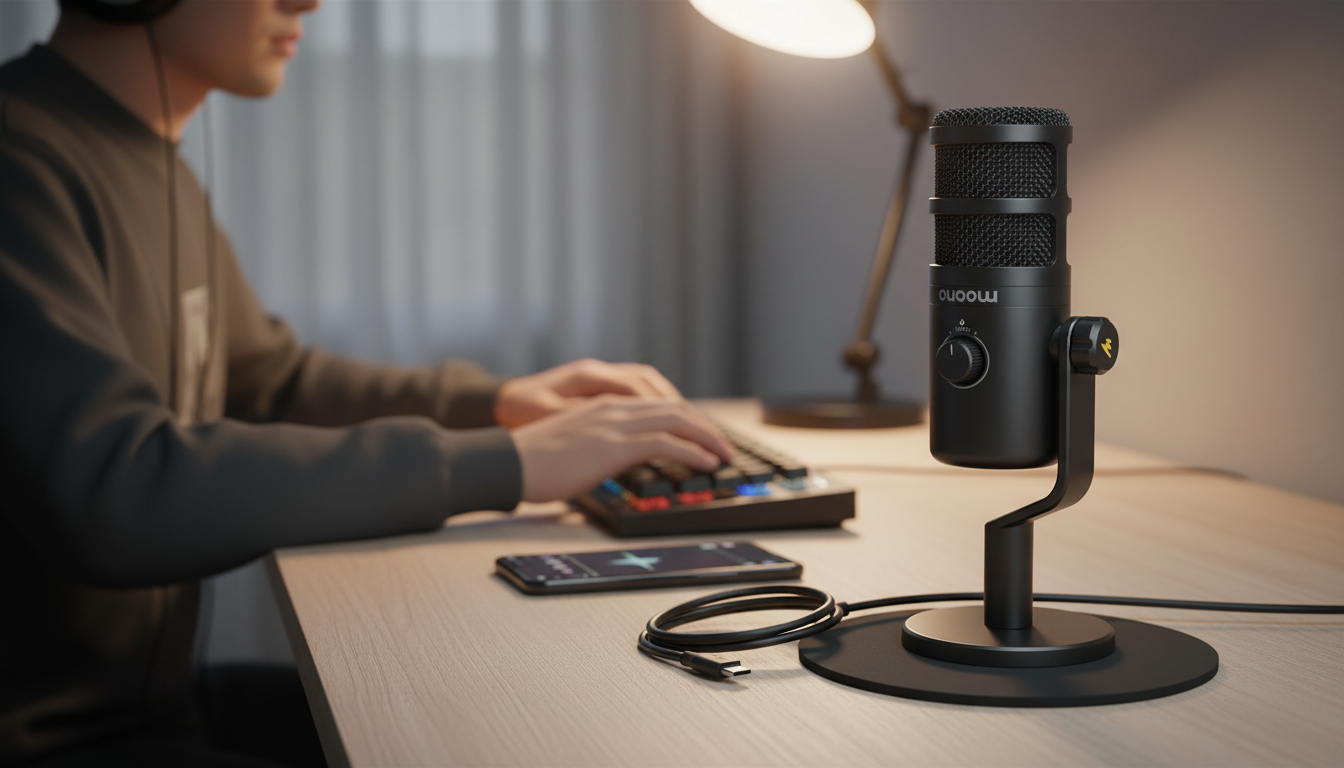
Dynamic USB‑C Microphone for Streaming, Recording & Gaming
Clear voice audio can make streams easier to follow, game chat more intelligible, and recordings sound more professional. A dynamic USB‑C microphone is a practical option for desks with background noise, offering a straightforward plug‑in setup for computers and many modern devices while focusing on the voice in front of it. For more guidance, see Maono PD200X USB/XLR Dynamic Microphone – LanOC Reviews.
What Makes a Dynamic USB‑C Microphone Different
Dynamic microphones are often chosen for spoken voice in real-world rooms—bedrooms, shared spaces, and gaming setups—because they can be easier to control than highly sensitive mics. The “USB‑C” part adds convenience by handling the digital connection without extra gear. For further reading, see SIMGOT EP5 – Reviews – Head-Fi.
- Built for practical rooms: Dynamic capsules typically handle loud sources well and are often less sensitive to room noise than many condenser mics, which can help in untreated rooms.
- USB‑C simplifies the chain: USB‑C connectivity combines the microphone and audio interface into one device—no separate interface required for basic use.
- Designed for close‑talking: Placing the mic about 4–8 inches from your mouth can improve clarity and reduce ambient pickup.
- Versatile for everyday audio: Useful for live streaming, voiceovers, podcast-style recording, and competitive gaming comms.
For general placement and plosive control, Shure’s guide is a solid reference: Shure – Microphone Techniques.
Where It Performs Best: Streaming, Recording, and Gaming
A dynamic USB mic shines when speech needs to stay upfront and consistent—even while keyboards click, a PC fan ramps up, or roommates move around in the next room.
- Streaming: Keeps speech forward and consistent when paired with simple software filters such as noise suppression and a limiter.
- Recording: Suitable for voice tracks, tutorials, and narration when positioned close and slightly off-axis to reduce breath noise.
- Gaming: Improves team comms clarity and reduces keyboard and fan noise compared with more sensitive microphones.
- Shared spaces: Close placement increases voice level relative to room sound, which is helpful in apartments or dorm rooms.
Quick Fit Guide by Use Case
| Use case | Recommended placement | Helpful settings | Common mistake to avoid |
|---|---|---|---|
| Live streaming | 4–8 inches, slightly off to the side | Noise gate + limiter | Mic too far away, boosting gain |
| Voice recording | 4–6 inches, off-axis 20–45° | High-pass filter (if available) | Pointing directly at mouth causing plosives |
| Gaming / chat | 6–10 inches, aimed at chin | Light compression | Open speakers causing echo |
If you’re using OBS, its filter overview can help you dial in the basics without overprocessing: OBS Studio – Filters Guide.
Setup in Minutes (USB‑C)
USB‑C microphones are popular because they remove the “extra boxes” from the equation. A simple setup gets you to a clean, usable voice fast—and then you can refine from there.
- Connect: Plug into a USB‑C port (or use a compatible adapter if needed), then select the microphone as the input in your system audio settings and in your streaming/recording app.
- Set levels: Start with input volume low-to-mid. Speak at normal volume and raise gain until peaks are strong but not clipping.
- Positioning: Place the mic on a stable stand or arm. Aim it toward your mouth and keep the rear/side oriented toward noise sources when possible.
- Software basics: Enable noise suppression only as needed; too much suppression can make speech sound “watery” or cut off word endings.
- Monitor: If the mic supports monitoring, use it to catch clipping, hum, or room echo early—before you record or go live.
Sound Quality Tips That Make the Biggest Difference
Small physical adjustments usually beat complicated settings. When a voice sounds thin, distant, or noisy, the fix is often placement and gain staging—not a pile of aggressive filters.
Connectivity, Compatibility, and Everyday Convenience
Compatibility Checklist Before Buying
| Device | What to check | Quick workaround if needed |
|---|---|---|
| Windows PC | USB microphone recognition + app input selection | Update audio drivers; try another USB port |
| macOS | Mic appears in Sound settings | Grant microphone permissions per app |
| Laptop/Tablet/Phone (USB‑C) | USB OTG/host support + power availability | Use a powered hub if device power is limited |
| Console | Platform USB mic support + chat routing | Check in-game settings; use headset mode if required |
Featured Option
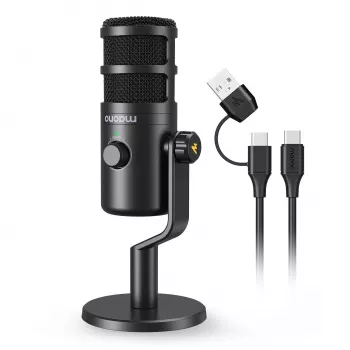
- Dynamic USB‑C Microphone for Streaming, Recording & Gaming — best results come from close placement, careful gain staging, and light processing rather than aggressive noise suppression.
At-a-Glance Details
| Product | Price | Availability | Link |
|---|---|---|---|
| Dynamic USB‑C Microphone for Streaming, Recording & Gaming | 70.82 USD | In stock | View product |
More In-Stock Picks
- Losing Body Fat Percentage eBook | Complete Guide on how to lose body fat percentage, Nutrition, Workouts & Lifestyle Strategies for Sustainable Fat Loss
- Helping Teens Build Healthy Connections in a Digital World – eBook Guide on how to help teens build healthy friendships, Teen Communication & Social Skills Resource
FAQ
Is a dynamic USB‑C microphone good for noisy rooms?
Often, yes. Dynamic mics are typically less sensitive to ambient sound than many condenser mics, and you’ll get the best results by keeping the mic close, the gain moderate, and the mic aimed away from noise sources.
Do you need an audio interface with a USB‑C microphone?
No for basic use. USB microphones include built-in conversion/interface for recording and streaming, while an external interface or mixer is usually only needed for specialized workflows or multi-mic setups.
How far should the microphone be from your mouth for streaming and gaming?
About 4–8 inches works well for streaming and voice recording, while 6–10 inches can be more comfortable for gaming. Speaking slightly off-axis and using a pop filter can further reduce plosives and harsh breath noise.














Leave a comment